The question came up on the Public GP Newsgroup about automating customer aging in GP. I recalled doing this for some customers in the past and found this method works well. GP calls a stored procedure called rmAgeCustomer to execute the Receivables Aging Process. You can do the same and schedule this to run periodically without user intervention. Run a DEXSQL.log when running that routine to trap this yourself.
Below is the SQL that will age all customers, all statement cycles, and all balance types as of the current date. I recommend you test this before deploying in a production environment.
DECLARE @O_iErrorState int, @I_dAgingDate datetime
select @I_dAgingDate = convert(varchar(10), GetDate(), 102)
EXEC dbo.rmAgeCustomer 0, '', 'þþþþþþþþþþþþþþþ', @I_dAgingDate, 127, 0, 0, '', @O_iErrorState OUT
SELECT @O_iErrorState
29 April, 2009


15 April, 2009
Table Index Optimization to Improve Dynamics GP Performance
I recently touched up some code I wrote for a client back in 2003. For them, Bob and I integrated GP Depot Management Work Order Entry/Update with Sales Order Processing (Document Number = Work Order Number) for quoting and invoicing repair work and after sales service. Part of this customization enabled them to inquire on their quotes and orders directly from Work Order Entry/Update.
The code simply queries the Sales Order Processing Work (SOP10100) and Sales Order Processing History (SOP30200) tables where the ORIGNUMB = Work Order Number and then opens the Sales Order Processing Document Inquiry, sets the From and To Document Number, and sets the Unposted or History radio button accordingly. This saves the service center personnel significant time when researching work order detail for customers which increases customer satisfaction.
After 6+ years they've accumulated a little history in SOP. The code behind the inquiry buttons placed on Work Order Entry/Update window was taking too long to run. With customer service agents on the phone with customers, waiting more than a few seconds for the system to return data was too long. It didn't take long to realize that there wasn't an index on the SOP30200.ORIGNUMB column. The impact of adding that index was phenomenal reducing wait time from 10+ seconds to what seems like just milliseconds.
To create a new index in SQL Server Management Studio:
1. Right Click on the table and click Design from the menu.
2. From the Table Design menu option select Indexes/Keys.
3. Click Add to create a new index.

There is a lot of great information widely available about when and how to create new indexes. I strongly recommend you educate yourself and engage an expert to optimize your indexes.
The code simply queries the Sales Order Processing Work (SOP10100) and Sales Order Processing History (SOP30200) tables where the ORIGNUMB = Work Order Number and then opens the Sales Order Processing Document Inquiry, sets the From and To Document Number, and sets the Unposted or History radio button accordingly. This saves the service center personnel significant time when researching work order detail for customers which increases customer satisfaction.
After 6+ years they've accumulated a little history in SOP. The code behind the inquiry buttons placed on Work Order Entry/Update window was taking too long to run. With customer service agents on the phone with customers, waiting more than a few seconds for the system to return data was too long. It didn't take long to realize that there wasn't an index on the SOP30200.ORIGNUMB column. The impact of adding that index was phenomenal reducing wait time from 10+ seconds to what seems like just milliseconds.
To create a new index in SQL Server Management Studio:
1. Right Click on the table and click Design from the menu.
2. From the Table Design menu option select Indexes/Keys.
3. Click Add to create a new index.
4. Select the column(s) on which you want to create the index.
5. Name your indexes consistently so that you can query all them out of sysobjects later when you need to.
6. Set other properties as needed.

There is a lot of great information widely available about when and how to create new indexes. I strongly recommend you educate yourself and engage an expert to optimize your indexes.
Of course, you can use T-SQL to load new indexes on your tables. Here's a sample:
CREATE NONCLUSTERED INDEX IX_SOP30200_ORIGNUMB ON dbo.SOP30200
(
ORIGNUMB
)
(
ORIGNUMB
)
WITH( STATISTICS_NORECOMPUTE = OFF, IGNORE_DUP_KEY = OFF, ALLOW_ROW_LOCKS = ON, ALLOW_PAGE_LOCKS = ON) ON [PRIMARY]
GO
GO
Remember that when you upgrade GP, it's likely that you will need to reload your indexes as the upgrade process will drop the old tables and therefore your indexes. Plan your upgrades accordingly and make sure you script your indexes before you do. Otherwise, GP will generally react positively to the new indexes.
11 April, 2009
Dynamics GP for Equipment Rentals
I recently wrapped up an implementation in the role of solution architect for a multi-location Equipment Rental company. I discussed our design with some of the best GP consultants I know who expressed interest in hearing more. I hope you find this useful.
We chose to lead with the GP Field Service Series; Contract Administration, Returns Management, & Depot Management Module along with the Sales Order Processing and Inventory Control modules to handle Equipment Rental processes and requirements. I continue to be impressed by the variety of applications I have found for this suite of GP modules.
In this scenario, the process begins with the contract. A customer phones the inbound call center and requests equipment for a specified period of time. The call center agent enters the contract terms into Contract Entry/Update. We mapped Contract Type to the customer's Location/Warehouse and customized the way GL distributions were populated (More on that to come).

The Create Order push button simply creates a new sales order header using default from SOP Setup and values from Contract Entry/Update and forces a relationship between the Sales Order (GL Reference) and the Contract (Job). The user then only has to enter the order lines and set the requested ship date then let the standard order fulfillment process run its course.
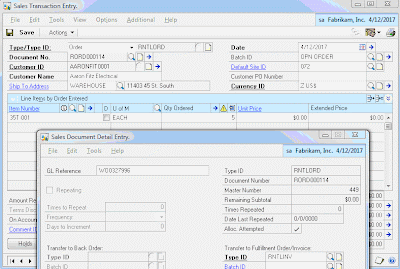
If you have worked with the Contract Administration Module you would realize at this point that we didn't assign any equipment to the Contract. The business process in this scenario is to assign the equipment to the Contract only after the equipment has shipped to the customer. It's only at that point that you would know which serialized piece of equipment was shipped.

At this point, the equipment has been shipped to the customer and the clock is ticking on the contract. You may have noticed that we defaulted the Hold flag on Contract Entry/Update to true (Simply done with VBA). This prevents the contract from being invoiced before the equipment is returned and inspected signaling the completion of the contract. This is where we'll pick up the process next.
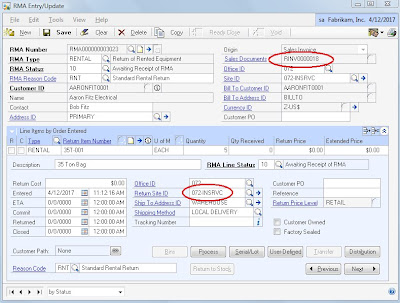
Next, follow the standard process for receive the RMA. This will adjust the returned equipment inventory into the designated In Service Location.
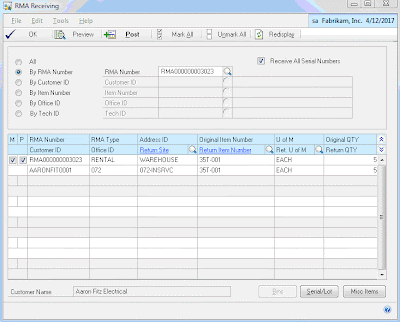
Once received, use the RMA Line Process Return window to create Depot Management Workorders for each item so that it can be inspected and returned to stock.
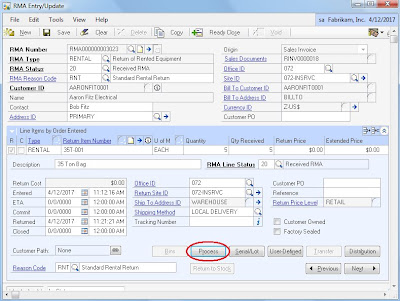
Post Labor and Parts to the Work Order(s) to track repair costs that might be billed back to the customer later. In this scenario, these charges would not be invoiced separately from the Contract Invoice. Rather, the labor and parts posted against the Work Order(s) will be used later in the process to apply additional repair charges to the Contract before it is billed.

After the parts and labor are posted and Work Order is complete we finished the inspection process by transferring the equipment from the In Service location back to general stock to be available for a future rental.
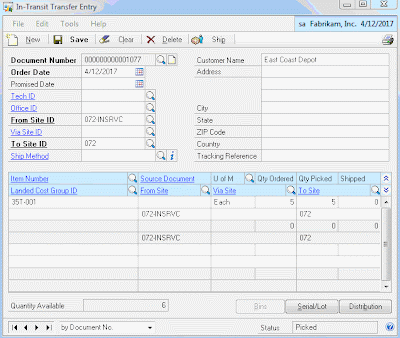
Linking the RMA to the invoice on which the equipment was shipped to the customer and the RMA to the Work Order against which inspection labor and parts are posted allows the backoffice to have visibility to returns of equipment and costs of inspection on unbilled contracts. There's a relationship between the RMA and Work Order all the way back to the Contract through the GL Reference:Job relationship created when the Sales Order was initially created from the Contract.
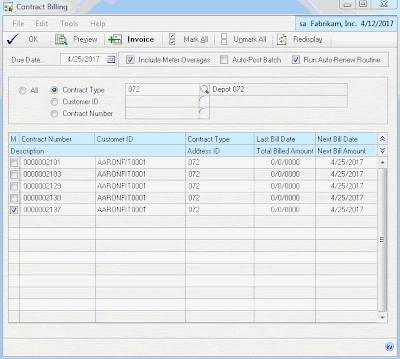
The final step in the process is to Bill the Contract to create the SOP Invoice to send to the customer for the rental, freight, and repair/inspection charges.
Now, you can enter and track all of your transactions, costs, inventory movements, etc. associated with managing your equipment rental business using the Dynamics GP Field Service Suite which comes packaged with your BRL. There's no need for spreadsheets or disparate systems to manage these processes. We customized this implementation to streamline data processing, ensure consistency, and enforce data integrity. However, you could opt to implement this process without any customization at all.
We chose to lead with the GP Field Service Series; Contract Administration, Returns Management, & Depot Management Module along with the Sales Order Processing and Inventory Control modules to handle Equipment Rental processes and requirements. I continue to be impressed by the variety of applications I have found for this suite of GP modules.
In this scenario, the process begins with the contract. A customer phones the inbound call center and requests equipment for a specified period of time. The call center agent enters the contract terms into Contract Entry/Update. We mapped Contract Type to the customer's Location/Warehouse and customized the way GL distributions were populated (More on that to come).

The next step is to use a push button we added to the Contract Entry/Update window to automate the generation of a Sales Order that the warehouse operations can fulfill to record the shipment of the equipment to the customer. This was a better fit than leveraging native functionality to create the Contract from SOP as the contract needed to be initiated before the SOP Invoice was posted. We setup the equipment as serialized inventory items without cost so that we could track shipments to customers and availability of equipment for rental.
The Create Order push button simply creates a new sales order header using default from SOP Setup and values from Contract Entry/Update and forces a relationship between the Sales Order (GL Reference) and the Contract (Job). The user then only has to enter the order lines and set the requested ship date then let the standard order fulfillment process run its course.

If you have worked with the Contract Administration Module you would realize at this point that we didn't assign any equipment to the Contract. The business process in this scenario is to assign the equipment to the Contract only after the equipment has shipped to the customer. It's only at that point that you would know which serialized piece of equipment was shipped.
We chose to automatically insert the equipment record on the Contract after the order was fulfilled, invoiced, and posted. We placed a trigger on SOP10201 to fire off a stored procedure that assigns the shipped serialized equipment records (SVC00300/SOP10201) to the Contract using the GL Reference:Job relationship. This is also where we assign the GL Account to the contract line based on the Location (SVC00600.CNTTYPE), Type of Customer (RM00101.USERDEF1), and Item Type (IV00101.USCATVLS_1) per the customer requirements.

At this point, the equipment has been shipped to the customer and the clock is ticking on the contract. You may have noticed that we defaulted the Hold flag on Contract Entry/Update to true (Simply done with VBA). This prevents the contract from being invoiced before the equipment is returned and inspected signaling the completion of the contract. This is where we'll pick up the process next.
We implemented the RMA module to track the returns of the equipment from the customer, send the equipment through the depot for inspection, and place the equipment back into stock to be available for future rental. The RMA and Depot Management modules were a great fit for this scenario.
We setup the RMA with a return path of none and to post the received inventory to an In Service Inventory Location. There's no need to credit or bill the customer for anything related to the RMA. We'll handle all of the charges when we bill the Contract later. We linked the RMA to the Invoice that we posted to record the shipment of the equipment to the customer.

Next, follow the standard process for receive the RMA. This will adjust the returned equipment inventory into the designated In Service Location.

Once received, use the RMA Line Process Return window to create Depot Management Workorders for each item so that it can be inspected and returned to stock.

Post Labor and Parts to the Work Order(s) to track repair costs that might be billed back to the customer later. In this scenario, these charges would not be invoiced separately from the Contract Invoice. Rather, the labor and parts posted against the Work Order(s) will be used later in the process to apply additional repair charges to the Contract before it is billed.

After the parts and labor are posted and Work Order is complete we finished the inspection process by transferring the equipment from the In Service location back to general stock to be available for a future rental.

Linking the RMA to the invoice on which the equipment was shipped to the customer and the RMA to the Work Order against which inspection labor and parts are posted allows the backoffice to have visibility to returns of equipment and costs of inspection on unbilled contracts. There's a relationship between the RMA and Work Order all the way back to the Contract through the GL Reference:Job relationship created when the Sales Order was initially created from the Contract.
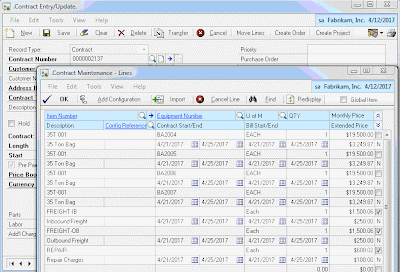
The backoffice now knows that the equipment has been returned, received, and inspected. They can query the costs of repair/inspection and prepare the contract for invoicing. In this scenario they chose to add new contract lines for additional charges such as Freight and Repair.

The final step in the process is to Bill the Contract to create the SOP Invoice to send to the customer for the rental, freight, and repair/inspection charges.

Now, you can enter and track all of your transactions, costs, inventory movements, etc. associated with managing your equipment rental business using the Dynamics GP Field Service Suite which comes packaged with your BRL. There's no need for spreadsheets or disparate systems to manage these processes. We customized this implementation to streamline data processing, ensure consistency, and enforce data integrity. However, you could opt to implement this process without any customization at all.
Using this process also allows you to query all of your equipment; in your own inventory (IV00102 and/or IV00200) as well as the equipment that is out on a rental contract (SVC00300 and SVC00601). You can use this information for Available to Promise Reports.
You may have noticed the Create Project Button on the Contract Entry/Update window. We also integrated the FSS Contract with Project Accounting so that we could leverage PAS to track T&M activity related to the equipment rental. PAS was a better fit than Service Call management in this case and maintaining the relationship between the CA Contract and the PA Contract enabled us to report on the profitability of the relationship with the customer by combining both T&M project costs and billing with rental contract transactions.
Subscribe to:
Posts (Atom)