I ran across this post from Mohammad Daoud recently. I get requests all the time from clients needing to have Dynamics GP transactions posted automatically. Mohammad did some digging and found a tool from Microsoft developed using the Continuum API to post GP Transactions. GP must be opened and a user must be logged in but that's generally not too much to ask.
You can use it to post GL, Inventory, Cash Receipt, Sales Order Processing, and Receiving transactions. It's not free but most great things aren't. Check out Mohammad's post for more details http://mohdaoud.blogspot.com/2010/07/posting-microsoft-dynamics-gp.html.
27 August, 2010


Disable DELETE PO in Dynamics GP Purchase Order Entry
The question; "Is there a way to turn off the DELETE option for POs?" came up in the newsgroups recently. If you need to, here's a pretty simple way to do so.
Now, instead of prompting to confirm that you want to Delete a PO after selecting Delete from the Actions Button the system will prompt you that you cannot and cancel that action.

- Add the Purchase Order Entry Window to Visual Basic.
- Add the following code to the Window_BeforeModalDialog event:
If PromptString = "Are you sure you want to delete this record?" Then
Answer = dcButton2
Response = MsgBox("You are not allowed to Delete Purchase Orders.", vbOKOnly, "Microsoft Dynamics GP")
End If
Now, instead of prompting to confirm that you want to Delete a PO after selecting Delete from the Actions Button the system will prompt you that you cannot and cancel that action.

25 August, 2010
Using GP Security to Control for which users VBA code runs
If you want to control for which users your VBA Code runs... you can... in some situations.
VBA Code can run behind a Modified or Original Window in GP, or not at all, based on the event mode you select in the window properties in the VBA Editor:

You could modify a window mildly and place your code behind the modified version just so that you can control for which users the VBA code runs by only granting access to the modified window to certain users. This won't work in every situation such as those in which you need to modify the window for all users but only want VBA code to run for some.
VBA Code can run behind a Modified or Original Window in GP, or not at all, based on the event mode you select in the window properties in the VBA Editor:

You could modify a window mildly and place your code behind the modified version just so that you can control for which users the VBA code runs by only granting access to the modified window to certain users. This won't work in every situation such as those in which you need to modify the window for all users but only want VBA code to run for some.
eConnect Nugget: Recalculating SOP Document Totals
I didn't run across any documentation on an eConnect proc that I found very useful while working with some eConnect integrations recently. I needed to update, not insert, a SOP Header record after adjusting some line item prices through code.
I found that using taSopHdrRecalc worked great for this. The schema is basically the same as the taSopHdrIvcInsert so you can consult that schema reference in the eConnect Help when working with this proc.
If you weren't already aware, Steve Gray has posted the eConnect Help Online here.
I found that using taSopHdrRecalc worked great for this. The schema is basically the same as the taSopHdrIvcInsert so you can consult that schema reference in the eConnect Help when working with this proc.
If you weren't already aware, Steve Gray has posted the eConnect Help Online here.
The Top 10 Dynamics Freebies
The Dynamics GP Blogster has published his list of the Top 10 Dynamics GP Freebies.
I'm excited that the 2 I have produced made his list:
- GP Password Expiration Notice made number 3.
- PO Purchases Account Required made number 8.
Check them out if you haven't already.
23 August, 2010
Default Process Holds for Dynamics GP SOP Doc IDs
You can assign default SOP Process Holds to Doc IDs so that when Documents are entered Process Holds that could control the flow of work in your processes are automatically applied.
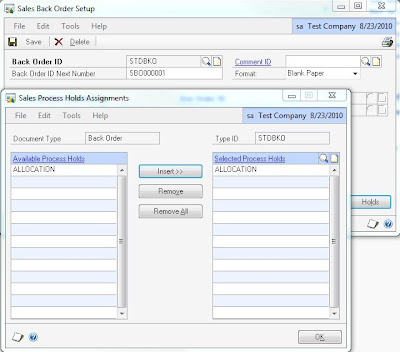
You might use default holds if, for example, every Order entered needs to go through a manual Credit Check OR all Backorders needs to be manually allocated. Then, you could use SmartList to view documents on holds that are important to you.
To assign a Default Hold to a Doc ID:
- Navigate to Sales Document Setup through Sales Order Processing Setup. Depending on which type of Document you select the name of the Doc ID Setup window will vary.
- In the Doc ID setup window click the Holds button on the bottom right hand corner of that window to open the Sales Process Holds Assignments window.
- In that window, you can specify which Process Holds will be automatically applied to a Document when entered into GP.

Cancelling Dynamics GP Contract Lines
If you ever need to cancel Contract Lines (Field Service Contract Administration Module Contract Lines that is) outside of GP try this:
DECLARE @RC int
DECLARE @CONSTS smallint
DECLARE @CONTNBR char(11)
DECLARE @LNSEQNBR numeric(19,5)
DECLARE @CANCELDATE datetime
-- TODO: Set parameter values here.
EXECUTE @RC = [dbo].[SVC_Cancel_Contract_Line]
@CONSTS
,@CONTNBR
,@LNSEQNBR
,@CANCELDATE
GO
The team that developed the Field Service Series made it quite easy to leverage some of the same stored procedures called by GP to perform various functions such as this.
DECLARE @RC int
DECLARE @CONSTS smallint
DECLARE @CONTNBR char(11)
DECLARE @LNSEQNBR numeric(19,5)
DECLARE @CANCELDATE datetime
-- TODO: Set parameter values here.
EXECUTE @RC = [dbo].[SVC_Cancel_Contract_Line]
@CONSTS
,@CONTNBR
,@LNSEQNBR
,@CANCELDATE
GO
The team that developed the Field Service Series made it quite easy to leverage some of the same stored procedures called by GP to perform various functions such as this.
Disallow adding Serial Numbers on the fly when fulfilling Orders in Dynamics GP
If you want to prevent users from adding new Serial Numbers on the fly when fulfilling Sales Documents in Dynamics GP try this:

- Add the Sales Serial Number Entry window to VBA
- On the Window_BeforeModalDialog event paste in this code:
If PromptString = "Do you want to add this serial number?" Then
Answer = dcButton2
MsgBox "You must select a serial number from the list of available serial numbers."
End If
Now, when a user attempts to add a serial number on the fly when fulfilling a Sales Document they will be presented with a message instructing them to pick one from the list instead.

22 August, 2010
Row by row analysis and execution with Cursors
Being able to do row by row data analysis and manipulation with SQL could be something that's missing from your toolbox. Whether you're converting data or developing a customization, cursors can prove to be quite useful. I use this template often. Loops are generally preferred to cursors for better performance but I still go to cursors often.
This example will pass all of the ACTINDX and ACTNUMST values from the GL00105 table into a cursor called curCursorName and select the variable values, displaying them in the SMS query results pane, before going to the next.
All you have to do is 1) declare a variable for each value you need to select into your cursor, 2) replace the select statement with the data set on which you need to do row by row analysis or manipulation, 3) write you own logic for the EXECUTE THE LOGIC section, and 4) replace the variables in the FETCH sections with your own. Remember, the values must be selected into the cursor in the same order the variables are fetched.
--DECLARE THE VARIABLES
DECLARE @ACTINDX INT,
@ACTNUMST VARCHAR(50)
--DECLARE THE CURSOR
DECLARE curCursorName cursor fast_forward for
-- SELECT THE VARIABLES INTO THE CURSOR
SELECT ACTINDX, ACTNUMST
FROM GL00105 T with (nolock)
--OPEN THE CURSOR
OPEN curCursorName
--FETCH A RECORD FROM THE CURSOR
FETCH next from curCursorName
into @ACTINDX, @ACTNUMST
WHILE (@@FETCH_STATUS = 0)
BEGIN
--EXECUTE THE LOGIC
select @ACTINDX, @ACTNUMST
--GET THE NEXT RECORD
FETCH next from curCursorName
into @ACTINDX, @ACTNUMST
END
--CLOSE AND DEALLOCATE THE CURSOR
CLOSE curCursorName
DEALLOCATE curCursorName
Filtering Grids in Dynamics GP with Modifier/VBA
It is pretty simple to apply custom filters to grids in Dynamics GP to control the data that loads into Lookups and Transaction Entry Windows.
In this example, my client wanted to be able to filter the Contract Maintenance - Lines window by Item Number and/or Serial Number. Their contracts can be quite lengthy. Research and contract maintenance would be cumbersome and inefficient without the ability to filter the records in this window.
To do this, use Modifier to add 2 new Text Boxes to the Contract Maintenance - Lines window in which to capture the filter criteria. I placed them directly above the grid in the window.

Next, add the Contract Maintenance - Lines window and the following fields to your VBA Project:


In this example, my client wanted to be able to filter the Contract Maintenance - Lines window by Item Number and/or Serial Number. Their contracts can be quite lengthy. Research and contract maintenance would be cumbersome and inefficient without the ability to filter the records in this window.
To do this, use Modifier to add 2 new Text Boxes to the Contract Maintenance - Lines window in which to capture the filter criteria. I placed them directly above the grid in the window.

Next, add the Contract Maintenance - Lines window and the following fields to your VBA Project:
- Item Number and Serial Number in the Grid
- Item Number and Serial Number fields you added with Modifier
Paste the following code in the ContractMaintenanceLDetail Grid BeforeLinePopulate event:

Now, just click the Redisplay button to apply the filter.

This code will evaluate records as they are populated in the grid and reject those that don't match the filter criteria. In this case, I used the Like operator so that any records that did not contain the filter criteria would be rejected.
20 August, 2010
Dynamics GP Password Expiration Notice
Last year, I posted a VST customization I thought I would sell to a client that would give users advanced notice that their GP Password was about to expire. That version was locked to only work in Fabrikam. Since that sale never materialized, I have unlocked it and am distributing it for free, "AS IS" with no warranties. You can download the unlocked version here! Just drop it in the GP\Addins directory. I have only tested this on version 10 of Dynamics GP.
The Dynamics GP Blogster has talked about why system administrators are not taking advantage of the password policy enforcement feature in Dynamics GP. If you or your customers are growing frustrated that your user's passwords are expiring without notice and IT is having to reset them frequently you might like this mod. It works like this...
For compatibility with SQL2005 I decided to store a Maximum Password Age with the Number of Days before expiration to begin notifying users that their passwords would expire. I could have integrated it with windows security policy or active directory to get these values directly but I didn't do that here. With SQL2008 you would only need to store the Number of Days before expiration to start notifying because you can query the DaysUntilExpiration LoginProperty in SQL2008. I wrote this work both ways depending on which version of SQL was running.
To capture the fields I needed I created a new Dynamics GP form in Visual Studio Tools that could be accessed from the Additionals Menu in Company Setup. I chose to store this data in the DUOS so that I didn't have to deal with creating any new tables. Therefore, you can setup each company to behave differently which could be a blessing or a curse.

Next, I added a NewHandler in VST on the SwitchCompanyCloseAfterOriginal event to compare the age of the users password to the maximum password age and days before notification captured in the PWExpirationNotice VST Form. If the user is due to be notified that their password would expire soon I present them with a message box...

... and then the User Password Setup window in which they could change their password on their way into the GP Company.

The prompt and User Password Setup window are only presented on the first login for a session. So, the users won't be nagged every time they change companies without shutting down GP first. They also aren't forced to change their password but rather given the option to do so easily at a convenient time so that they don't get locked out later.
The Dynamics GP Blogster has talked about why system administrators are not taking advantage of the password policy enforcement feature in Dynamics GP. If you or your customers are growing frustrated that your user's passwords are expiring without notice and IT is having to reset them frequently you might like this mod. It works like this...
For compatibility with SQL2005 I decided to store a Maximum Password Age with the Number of Days before expiration to begin notifying users that their passwords would expire. I could have integrated it with windows security policy or active directory to get these values directly but I didn't do that here. With SQL2008 you would only need to store the Number of Days before expiration to start notifying because you can query the DaysUntilExpiration LoginProperty in SQL2008. I wrote this work both ways depending on which version of SQL was running.
To capture the fields I needed I created a new Dynamics GP form in Visual Studio Tools that could be accessed from the Additionals Menu in Company Setup. I chose to store this data in the DUOS so that I didn't have to deal with creating any new tables. Therefore, you can setup each company to behave differently which could be a blessing or a curse.


Next, I added a NewHandler in VST on the SwitchCompanyCloseAfterOriginal event to compare the age of the users password to the maximum password age and days before notification captured in the PWExpirationNotice VST Form. If the user is due to be notified that their password would expire soon I present them with a message box...

... and then the User Password Setup window in which they could change their password on their way into the GP Company.

The prompt and User Password Setup window are only presented on the first login for a session. So, the users won't be nagged every time they change companies without shutting down GP first. They also aren't forced to change their password but rather given the option to do so easily at a convenient time so that they don't get locked out later.
18 August, 2010
Reconciling SOP Batches in Dynamics GP
Yesterday I posted a SQL proc that would reconcile SOP Batches and delete any that were empty. I realized that was somewhat incomplete after learning about a problem another client was having with missing batch headers. That also is not for everyone since there was not an option to NOT delete empty batches.
To that end, I have posted a new SQL proc that will reconcile SOP Batch Totals, optionally delete any empty batches, and add any missing batch headers. If this sounds like something that would be useful to you, feel free to download the proc here, load it on your GP company database, and then simply run the following to execute it:
EXEC [dbo].[SACi_sp_GP_SOP_Batch_Reconcile] 'Sales Entry', 1
The second parameter will drive whether or not empty batches are deleted. Pass a 1 to delete empty batches and a 0 to not delete empty batches.
This blog is provided "AS IS" with no warranties, and confers no rights.
To that end, I have posted a new SQL proc that will reconcile SOP Batch Totals, optionally delete any empty batches, and add any missing batch headers. If this sounds like something that would be useful to you, feel free to download the proc here, load it on your GP company database, and then simply run the following to execute it:
EXEC [dbo].[SACi_sp_GP_SOP_Batch_Reconcile] 'Sales Entry', 1
The second parameter will drive whether or not empty batches are deleted. Pass a 1 to delete empty batches and a 0 to not delete empty batches.
This blog is provided "AS IS" with no warranties, and confers no rights.
16 August, 2010
Deleting Empty SOP Batches Made Easy
I took a support call recently in which a client explained that they had accumulated hundreds of empty SOP Batches that they wanted to delete. In response, I produced a simple proc that will scroll through the "Sales Entry" Batches and, like Check Links on Sales Work, will update the Number of Transactions and Batch Total on each. This proc goes one step further and deletes any Batches for which the Number of Transactions is 0. Of course, there are many reasons why you might want to keep some of your Batches even though they are empty so this might not be for everyone.
If this sounds like something that would be useful to you, feel free to download the proc here, load it on your GP company database, and then simply run the following to execute it:
EXEC [dbo].[SACi_sp_GP_SOP_Batch_Cleanup] 'Sales Entry'
You could schedule a SQL job and run this to clean up your SOP Batches periodically or add a push button to a form in GP for ad-hoc execution from within the application.
This blog is provided "AS IS" with no warranties, and confers no rights.
If this sounds like something that would be useful to you, feel free to download the proc here, load it on your GP company database, and then simply run the following to execute it:
EXEC [dbo].[SACi_sp_GP_SOP_Batch_Cleanup] 'Sales Entry'
You could schedule a SQL job and run this to clean up your SOP Batches periodically or add a push button to a form in GP for ad-hoc execution from within the application.
This blog is provided "AS IS" with no warranties, and confers no rights.
06 August, 2010
More companies are leasing their Equipment in this economy
I read an article in the Nashville Business Journal with survey results that more companies are spending but more are opting to lease their equipment instead of buying. I too am seeing the same out in the field.
If you're already using Dynamics GP to manage your sales operations you're just a few clicks away from using it for managing your leases.
http://mbsguru.blogspot.com/2009/04/dynamics-gp-for-equipment-rentals.html
If you're already using Dynamics GP to manage your sales operations you're just a few clicks away from using it for managing your leases.
http://mbsguru.blogspot.com/2009/04/dynamics-gp-for-equipment-rentals.html
Subscribe to:
Posts (Atom)